1. Choose a photo mode
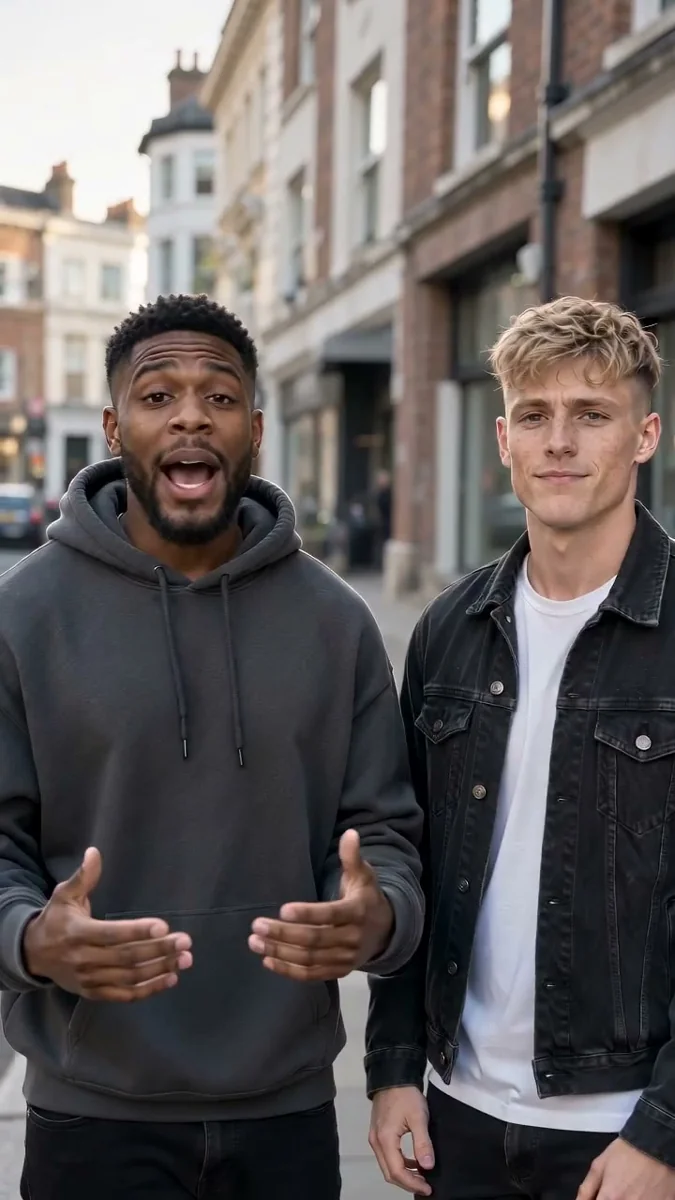
Choose Just me for one performer, One photo of both for a shared picture, or Two photos for separate portraits. Use clear images and only photos you have permission to use.
AI Rap Flow GUIDE
Updated October 27, 2026
Choose a solo or duo photo mode, pick a stage, then write a topic that gives the rap a clear point of view. Review the photos, prompt, language, video settings and credit cost before confirming a real generation. Start in the AI Rap Flow studio, or use a fixed trend template such as Hotel Lobby AI.
Choose Just me for one performer, One photo of both for a shared picture, or Two photos for separate portraits. Use clear images and only photos you have permission to use.
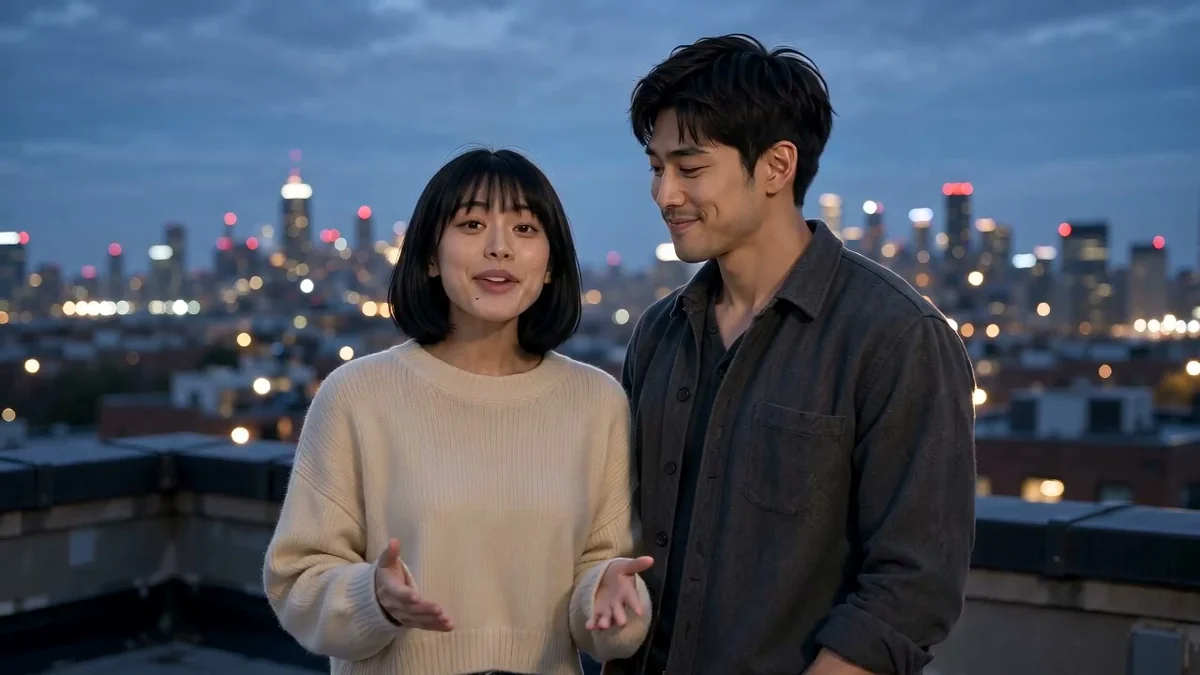
Choose a setting that fits your idea, such as Studio Booth, Street Cypher, Rooftop Session or Block Party. The three examples above show different performer and stage combinations.
Add the names, occasion and one memorable detail. You can start from an occasion prompt, then make it personal. Avoid private information and do not assume a particular real person’s voice will be reproduced.
Review the generated prompt, output language, quality, length, format and displayed credit cost. Confirm only when the settings and photo permissions are right, then follow the task in My videos.
Try the studioUse a well-lit, front-facing photo with a clear view of the performer. For a duo, make sure both people are visible in the selected shared image or upload one portrait per person in Two photos mode.
Keep the topic focused on one person, occasion or story. Review the prompt before submitting and remove details that are unrelated or private.
Check its status in My videos. Review the final displayed credit cost before submitting; if a task fails, check its status and account balance for the service’s failure handling.
Yes. Choose Just me, One photo of both, or Two photos depending on who should perform and which photos you have.
No. Two photos mode accepts a separate portrait for each performer. One photo of both is a separate mode for a shared picture.
Yes. The main studio lets you choose an available stage and add your own topic. Fixed trend pages use their own preset workflow.
No. Start with a topic, names, an occasion and a detail. You can review the generated prompt before you submit.
The studio displays the credit cost for the selected settings before you confirm. Check the current estimate there.
Follow the task in My videos. When it succeeds, use the result and download controls shown for that task.
Explore the other live guides: Hotel Lobby how-to · Raindance how-to · Bulin 47 how-to. Or browse all guides.