1. Add Photo 1
Choose a clear photo of one person. Photo 1 is Person A, who starts on the viewer’s right. A face and visible outfit help define the performer.
AI Rap Flow GUIDE
Updated October 27, 2026
Upload two separate photos, assign one person to each side, and choose the Hotel Lobby stage. The fixed performance lasts 15 seconds and usually takes a few minutes to render. Choose portrait (9:16) or landscape (16:9) before you submit. The preview uses the original audio, while the downloadable MP4 is silent; open Hotel Lobby AI to make your video.
Choose a clear photo of one person. Photo 1 is Person A, who starts on the viewer’s right. A face and visible outfit help define the performer.
Choose a separate photo of one person. Photo 2 is Person B, who starts on the viewer’s left. The upload order sets the starting sides, so check both before continuing.
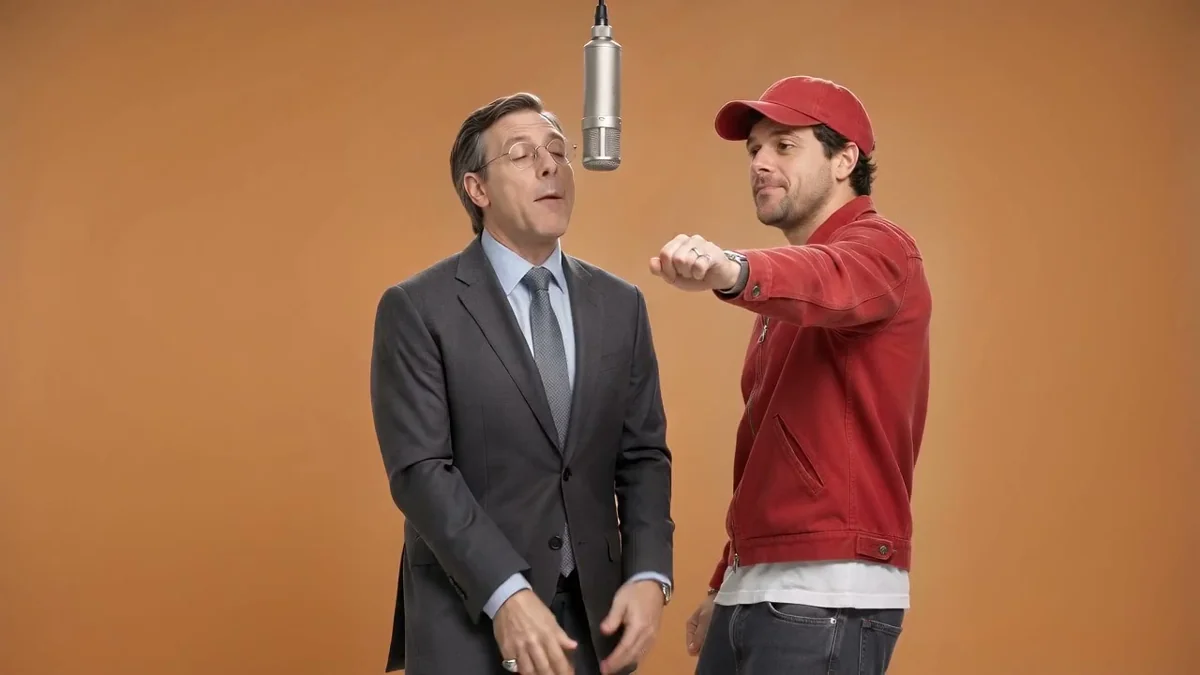
Select the Hotel Lobby trend, then choose 16:9 landscape or 9:16 portrait and review the displayed quality and credit cost. The stage, choreography and 15-second length are fixed; there is no custom topic field for this template.
Review the photo roles, frame and credits, then submit. The preview combines the generated video with the original audio. The download is a silent MP4; add a sound using TikTok, Instagram Reels or CapCut’s official music library. This tutorial shows how.
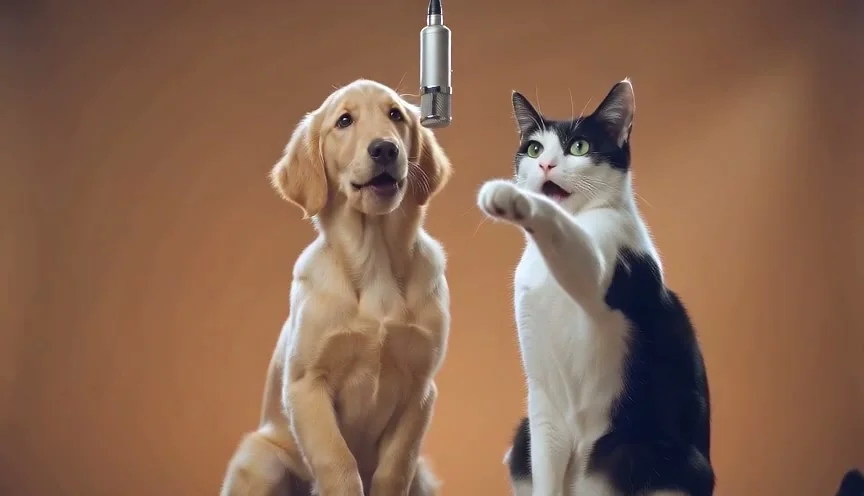
The same two-photo setup can feature animals. This example puts a cat and dog into the performance; use a clear, separate image for each subject and review the result for identity and framing.
Use two separate, well-lit photos with one clearly visible subject in each. Avoid heavy occlusion, tiny faces or busy backgrounds. Review the roles and try a clearer source photo if the result does not preserve the identities well.
Use photos you have permission to use and make sure they meet the service rules. A safety filter can block some inputs.
Check the job status and try again if needed. Confirmed failed jobs restore the reserved credits to your balance; the final credit amount is shown before submission.
Exactly two separate photos, one person per image. A shared photo or solo input is not supported by this template.
Photo 1 (Person A) starts on the right; Photo 2 (Person B) starts on the left.
Yes. Choose 9:16 portrait or 16:9 landscape in the trend studio before submitting.
No. This trend uses a fixed Hotel Lobby performance and 15-second duration. The preview includes the original audio; the downloaded MP4 is silent.
The current studio shows the available quality and credit cost before you submit. Pricing can change, so review the amount shown there.
Confirmed failed jobs restore credits. Check your job and account balance if a render does not complete.
Want a flexible rap workflow with editable topics and stages? Read How to make an AI rap video, the Raindance AI how-to, or the Bulin 47 how-to, or browse all guides. You can also explore Bulin 47 AI and Raindance AI.